Showing posts with label teensy. Show all posts

Sunday, June 8, 2014

Teensy 3.1 & The RESET Pin


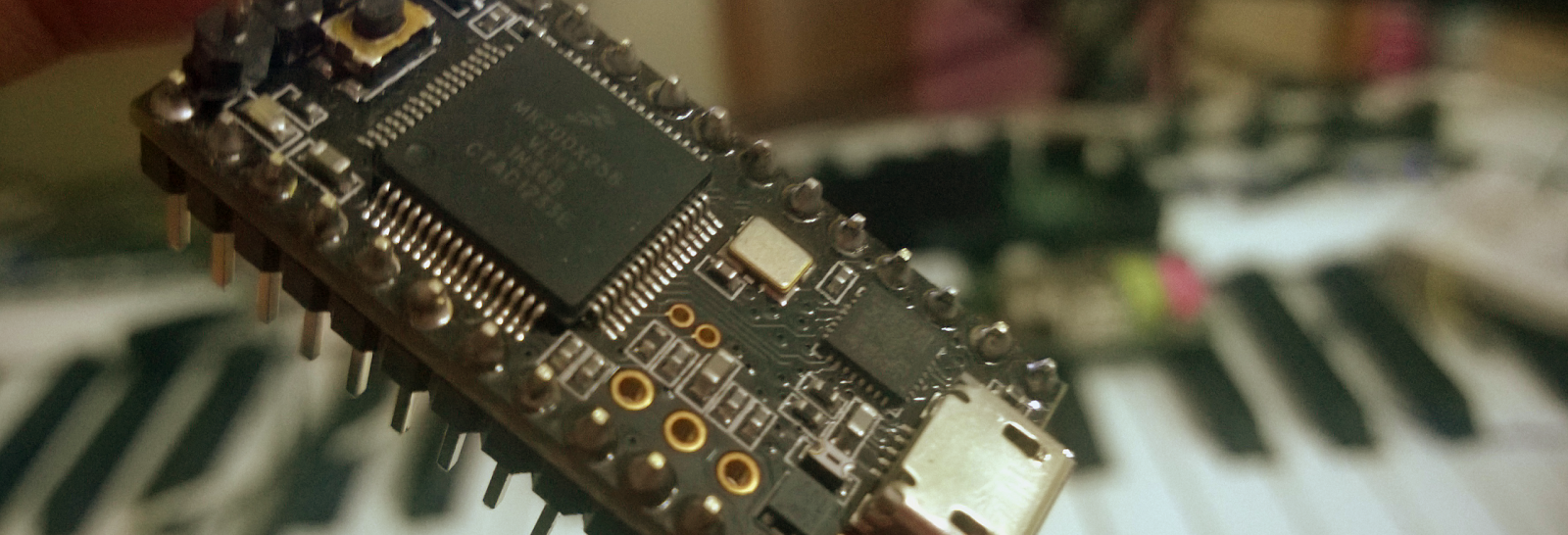
The Teensy 3.1 unlike the Teensy 3.0 does not have a RESET pin to which you can connect a header and access it easily. The 3.1 has the RESET pin at the bottom of the board connected to a very tiny circular pad - the reason being, as Paul Stroffregen says, is to keep the board in a small form factor. For breadboarded projects it is kinda impossible to tap into this pin and have reset functionality available. The only source of a reset is to power off and power on the device. Another method is to connect a wire to the reset pad and if you succeed you get the reset functionality. I however do not like wires dangling about and creating a mess on my breadboarded / PCB projects, also they have a higher chance of breaking off. In this post i describe how i dealt with this situation of accessing the reset pin...
  
Here is the Teensy 3.1 boad with it's RESET pin marked as R on the bottom of the device. 


Take a female header pin connector - the kind of connectors you find on Arduino / shields. You can either get a single female header or break one off a 8-pin header like i did to mine.


Place the header on the board and fold it's pin such that it forms into a shape shown below. Try to make sure that you fold it enough such that the lower curved end and the plastic section of the header are in a straight line otherwise you will find that when the header is placed flat on the board it will start to rock on one side...


Clip off the remaining end of the connector after aligning properly with the board. I placed the header near the board edge right below the USB connector.


Time to solder the header. Place the header on the board and use some tape to fasten it when you solder, thereby preventing it from moving around and getting a dry / nasty solder joint. Try to keep the tip of the header near the center of the pad.


This is what it looks after soldering. The header lies flat on the PCB and the joint is far from breaking off.


The female header is the same size as the male header pins. It can therefore be easily used with a breadboard.


That's it, now you've got a access to the RESET pin in a more respectable manner :P. However, the disadvantage of this approach is that you lose access to the +D pad and cannot connect the capacitor for USB host mode. I never intend to use those, hence no regrets. Make sure to glue the header to the board with some strong adhesive.

Got a better way ? Post it in the comments below and let me know. 

Thanks for reading through....


Monday, April 21, 2014

Freetronics OLED + MPU6050

This post is a follow-up to my previous post. In here i have shown the setup i did for the OLED and MPU 6050. The only difference is that i have used the MPU 6050 IMU in this case which is a 6DOF MEMS device sporting a triple axis accelerometer and gyroscope. The Teensy 3.1, MPU6050 and OLED are powered by a 400mAH LiPo battery. For lesser power consumption the Gyro and Temperature sensor of the MPU-6050 were disabled and the sensor data was made available at a frequency of 40 Hz - the wake up frequency configured in the LP_WAKE_CTRL register. In this way with only the accelerometer enabled in low power mode, as per the datasheet, the accelerometer draws 140 microamps. The objective was to test how long the configuration will operate (I've got bigger plans for these little circuits....coming soon)

An Arduino UNO powered by a DC adapter to drive the servo on which the MPU-6050 is mounted

The servo setup. The servo arm swipes back and forth 180 degrees to simulate movement and generate data off the sensor board, displaying a neat (oscillating) graph

The LiPo and the charger interface

Birds eye view.

The circuit was operational for 5 hours 21 minutes before the battery ran out.


Friday, April 18, 2014

Freetronics OLED + Accelerometer

  531 on Z-Axis, seriously !!

This time i decided to interface the 128x128 OLED display from Freetronics to the Teensy 3.1 and have it display the ADXL 345 accelerometer data as a graph for all three axes. The OLED uses the SPI interface and the library provided by Freetronics which can be found here. The ADXL345 interfaces over the I2C bus. You can choose to use the Wire library or the one provided by Adafruit (which internally calles Wire API anyways) which has a few more features. Interfacing all of the above and getting the data from the accelerometer are pretty simple. Displaying the graph on the OLED was a tad nasty business as detailed below.

As per the wiki, the OLED origin (0, 0) lies in the lower left corner. The Y-axis goes up vertically and the X-axis horizontally. To display the graphs in the center of the OLED an offset of 64 needs to be added to plot the data over the Y-Axis. The data coming from the accelerometer needs to be displayed as a graph in realtime. This data needs to be stored somewhere and represented on the graph. The graph is defined as follows - X-axis plots the sample number and Y-Axis the value of that sample. As we have only 128 pixels along X, the sample buffer will be of size 128 shorts. XSamples[128]. As we are plotting all accelerometer data along the X-axis, all sample buffers will be of size 128. As far as the Y-axis is concerned we have max 64 positive and negative values above and below the main axis. Negative values from the accelerometer will appropriately map to a positive value within the range 0 to 63.


To draw the graph lines without taking too much time for drawing operations the method i used is shown above. In the simplest form it's just drawing a line from the current point to the previous point. Every point on the Y-Axis will have a co-ordinate of the form (sample_number, sample_value). Hence, if we have sample x[0] = 5 and the current sample x[1] = 3 then, the parameters to drawLine API of the OLED will be nothing but (1, 3, 0, 5) or (1, x[1], 0, x[0]) or in general form for a sample s (s, x[s], s-1, x[s-1]). Note that s has to start from a value of 1 and that a certain offset needs to be applied to the Y-axis values to display the graph, if the image above makes any sense, i shall leave that for you to figure out. Yes, i am mean. 

After all 128 samples have been plotted it's necessary to clear the OLED screen to display a new graph. This will cause your display to flicker every 128 samples. I am working on a method to do this without using clearscreen and will post shortly.

The final result is shown in the header image above of the oled displaying the accelerometer data while i shake the breakout board. As it can be seen that the z value looks way too high, yet still being plotted properly. This is because of the fact i am sprinteffing the data into a buffer and the values stick in the buffer like ghosts of previous samples inspite of a memset to 0 operation. Note to self - bust these ghosts...


Monday, March 31, 2014

Ableton Live + WS2811 RGB LEDs

Here is a quick 101 to connect a bunch of WS2811 RGB LEDs to a Teensy 3.1 board and sync them to a track playing in Ableton Live by configuring the Teensy as a MIDI device. Each time Ableton plays a MIDI note it turns ON one of the LEDs. The amount of time the LED remains in the ON state depends on the note length.
 
I have used 5 leds for this, each LED is a breakout board which has been chained to the other modules as you can see in the pictures below. The LEDs being heavy on current requirements, an external power supply has been used. Make sure to power the Teensy with a 5V power supply. The DIN pin needs 5V output for a decent error free operation. [With a 3.3 V power supply to the Teensy the LEDs were displaying false colors]. A 1000uF capacitor is required at the supply pins of the LEDs for protection. Also a 100 Ohm resistor must be in series with the DIN pin to reduce high frequency ringing and noise.

The WS2811 LEDs have strict timing constraints for control and follow a certain protocol as mentioned in the datasheet. I have used the Adafruit Neopixel library to control the LEDs. This library has got an implementation for the Teensy boards and can be found here.

Before compiling the code switch the Teensy 3.1 USB type to USB MIDI from the Tools Menu. Once programmed the Teensy will be detected on the host machine as a USB Audio Device. Only after the Teensy is recognized by the machine, start Ableton Live. If you do not know what Ableton Live is, click here (duh). This is necessary because Ableton Live will not detect MIDI devices after it starts up i.e. no hotplug capability. To confirm that Ableton has detected the device, goto Preferences and check USB Audio Devices detected by Ableton as shown in the image below.


To allow Ableton to send MIDI information from a track to the Teensy, the MIDI routing of the track needs to be changed. Bring up the IO options for MIDI tracks in the Clip / Arrangement View and select the MIDI To drop box to USB Audio. USB Audio Device will be available in the drop-down list of devices to which you can send MIDI. Next select the channel (right below the MIDI To box) to send this MIDI information. Note down the channel number for the track as you will have to use it in code. The image below show the basic setup.


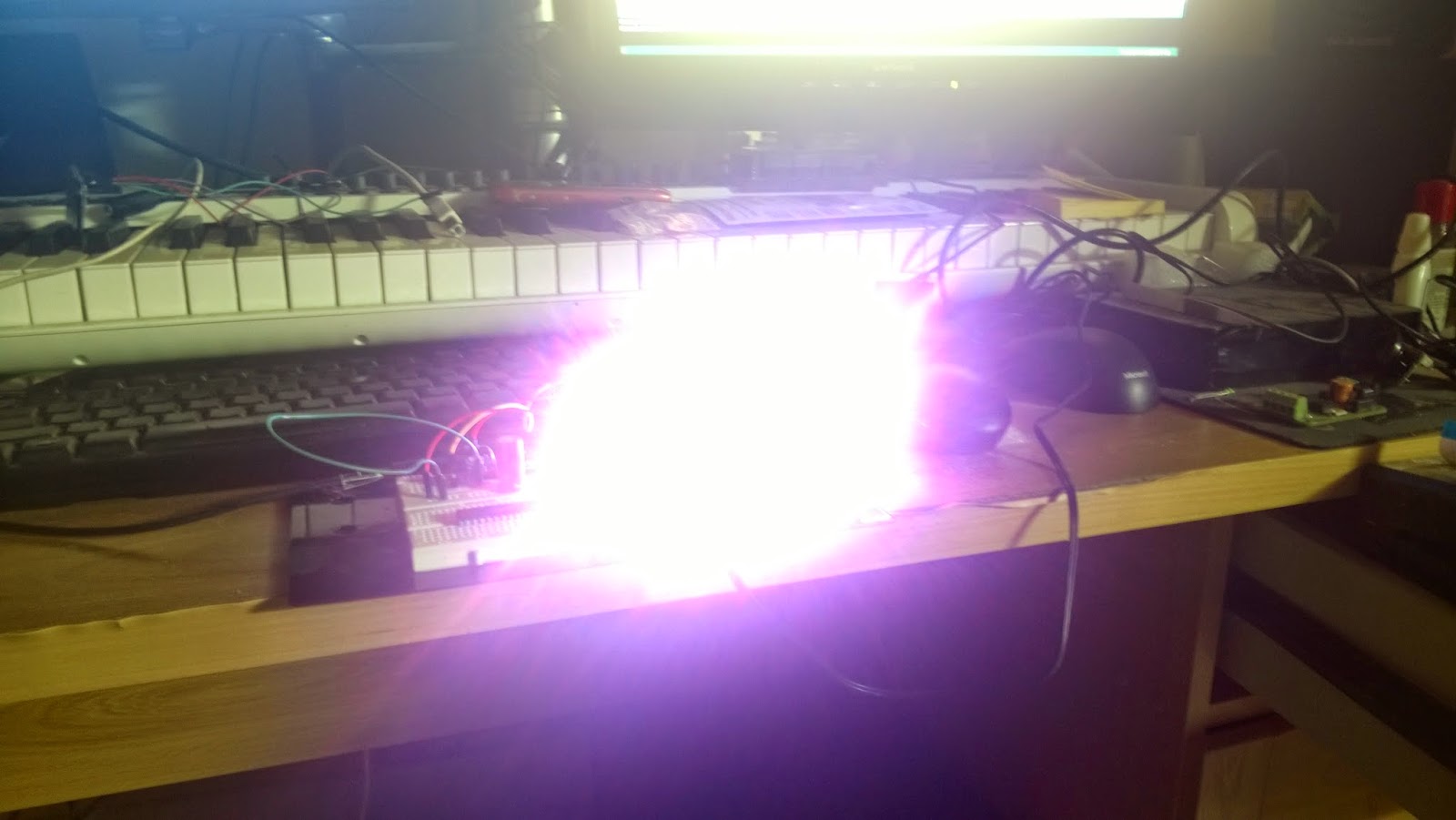
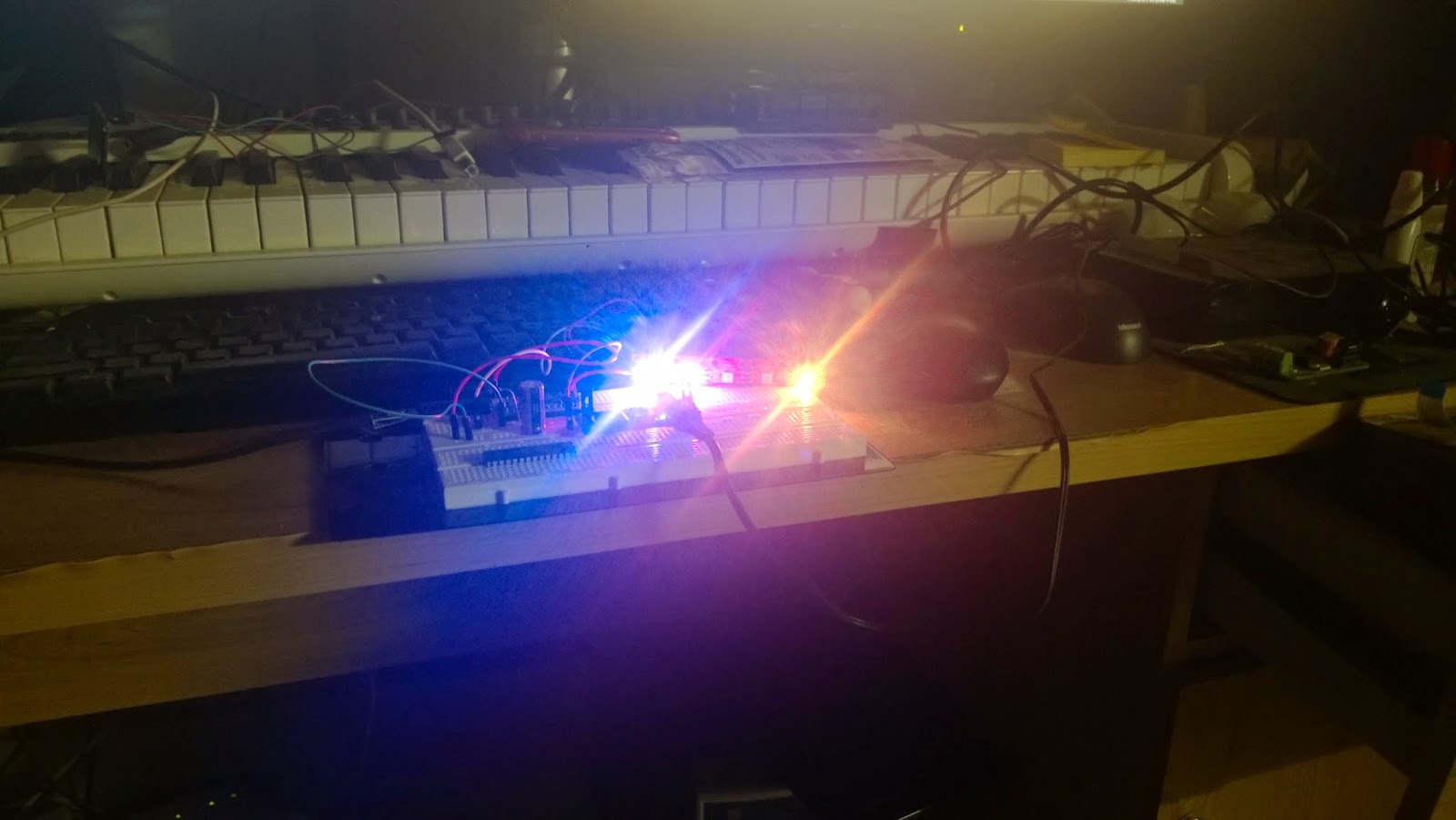
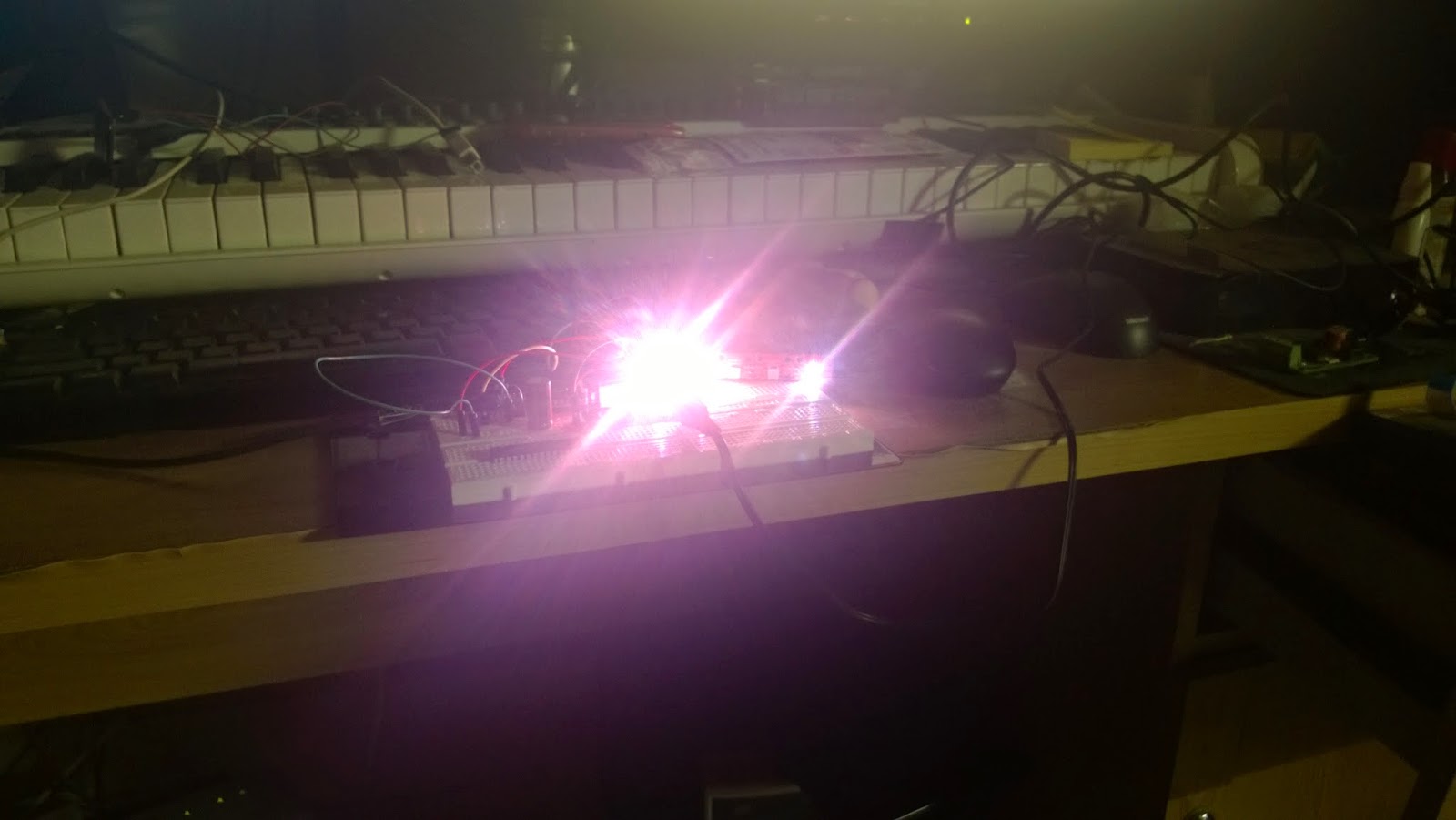
Some images of the setup and the LEDs in action. CAUTION: These LEDs are exceptionally bright. DO NOT LOOK directly into them. Use a diffused material to shield or a camera or perhaps some shades to look at them..


    A State of Trance on my desk :P

   Shot at a lower ISO and high shutter speed


On the Teensy i used the following code to read MIDI information and based on the channel turn ON/OFF the corresonding LED. The color for the LEDs is randomized. You will also have to create a duplicate MIDI track for the actual instrument and route the MIDI to the USB Audio Device. This way you can simultaeneously listen to the track and send MIDI to the Teensy.


Sunday, March 16, 2014

FreeRTOS on Teensy 3.1

 
This post is about running FreeRTOS on a Teensy 3.1 board from PJRC. It is not a detailed in-depth coverage but will get you started. If you have not heard about this board you can find it here. Since my last post on making FreeRTOS run on the BeagleBoard, which was a nice learning experience, i've been porting FreeRTOS on anything i can get my hands on - a blender, television, chickens. You see, to port FreeRTOS on a chicken all you have to do is shove a compiled image up it's...never mind. Let's get started with this thing. First the pre-requisites

Pre-requisites:
- Teensy 3.1
- Arduino 1.0.5 with the support for Teensy installed.
- FreeRTOS source code
- Cortex M Series TRM (duh)
- Datasheet of the MK20DX256VLH7 (you probably will not open it)


FreeRTOS:
FreeRTOS can be downloaded from the website. The latest version 8.0.0 has ports for Cortex M devices  already. You can refer to that and it's accompanying demo example. As we are using the Teensy here some minor modifications are necessary. In the portable directory we need to look inside the GCC sub-directory as the arduino uses the gcc toolchain for code compilation. Within the GCC directory there will be three sub-folders - ARM_CM0, ARM_CM3, ARM_CM3_MPU, ARM_CM4F. I used the ARM_CM3 port for the Teensy as it was simple and did not create unnecessary link errors. Perhaps i will try with the MPU version later. Do not use the ARM_CM4/F port, in my opinion it is wierd, maybe just not for this board.
The directory structure
- Source: The FreeRTOS source code.
- Source/include: The header files
- Source/portable: Target dependent files. For the Cortex these will be in the ARM_CM3 sub-directory inside GCC within portable, jeez...


Procedure:
1. Make a duplicate copy of the Arduino folder as a back up in case you need to revert back the code.
2. Copy all the FreeRTOS C / headers / portable files into the /Arduino1.0.5/hardware/teensy/cores/teensy3.
3. Copy the memory manager of you choice, i chose heap_2.c, from FreeRTOS's MemMang directory to the directory in [2].
4. The Teensy 3.1 has a 256K flash but it uses the mk20dx128.c file as it's startup. This file needs some editing as mentioned below.

4.1. Include FreeRTOS.h and task.h
4.2. stick_default_isr needs to be commented out, we shall see why later in [4.5]
4.3. I defined vApplicationStackOverflowHook function in this file.
4.4. Comment out prototype declaration for svcall_isr, pendablesrvreq_isr and systic_isr. Yes, i will not be using CMSIS naming conventions.
4.5. Replace the functions mentioned in [4.4] with vPortSVCHandler, xPortPendSVHandler, xPortSysTickHandler respectively  in the gVectors array. 
4.6. In the ResetHandler function comment out the initialization of the Systick as we shall be doing that during FreeRTOS initialization.
5. To setup the heap, mk20dx256.ld linker script needs to be modified. Here add a new region .heap as shown below. "heapsection" is the name given in as the __attribute__ for the static heap. This will not be present in the original file and needs to be modified as:

static uint8_t ucHeap[ configTOTAL_HEAP_SIZE ]  __attribute__ ((section(".heapsection")));

6. I setup my FreeRTOSconfig.h as shown below

7. I then edited the main.cpp file to test the FreeRTOS functionality.


Well this should get FreeRTOS running, if you get any compiling / linking errors then i probably missed out something, but i am confident you can fix those yourself. FreeRTOS runs like a charm on this board only limited by it's memory capacity. Now there are problems with the rest of the Arduino code not being thread-safe and not designed to run under an OS. There is a discussion on the same on the Teensy forum right here - http://forum.pjrc.com/threads/540-ChibiOS-RTand-FreeRTOS-for-Teensy-3-0

I have a very busy schedule and it takes time to implement and write up all this stuff. I will be updating this post with new findings as i go forward with this like the maximum tasks that can be run, etc... 

Code:
https://github.com/circuitsenses/Teensy-3.1-FreeRTOS

Happy Coding... 
P.S - Notice that you never referred to the MK20DX256VLH7 datasheet :P